Although LeasePilot takes care of most text formatting automatically, there are times when you'll need to make custom formatting changes for a given deal. Note: If you find that you are frequently needing to make the same formatting changes on every lease, get in touch with our team so that we can update your base form.
How to use the Bold, Italic, and Underline tools
Bold, Italic, and Underline tools in LeasePilot work pretty much how you would expect them to work in a traditional word processor:
- You can highlight existing text and click on one or more tools to apply formatting
- Prior to typing new text, you can click the formatting tool(s) you intend to use and then begin typing.
How to use the Text Highlighting tools
To add highlighting to text in your document, simply drag your cursor over the text you wish to highlight to select it and then click the Highlight Color ( ) tool in the toolbar to reveal the color picker:
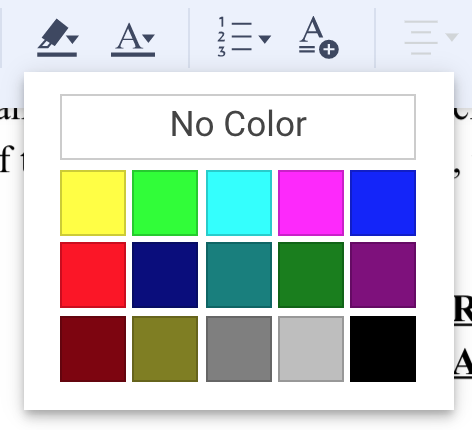
Select the highlighter color you'd like to use and the formatting will be added to your text.
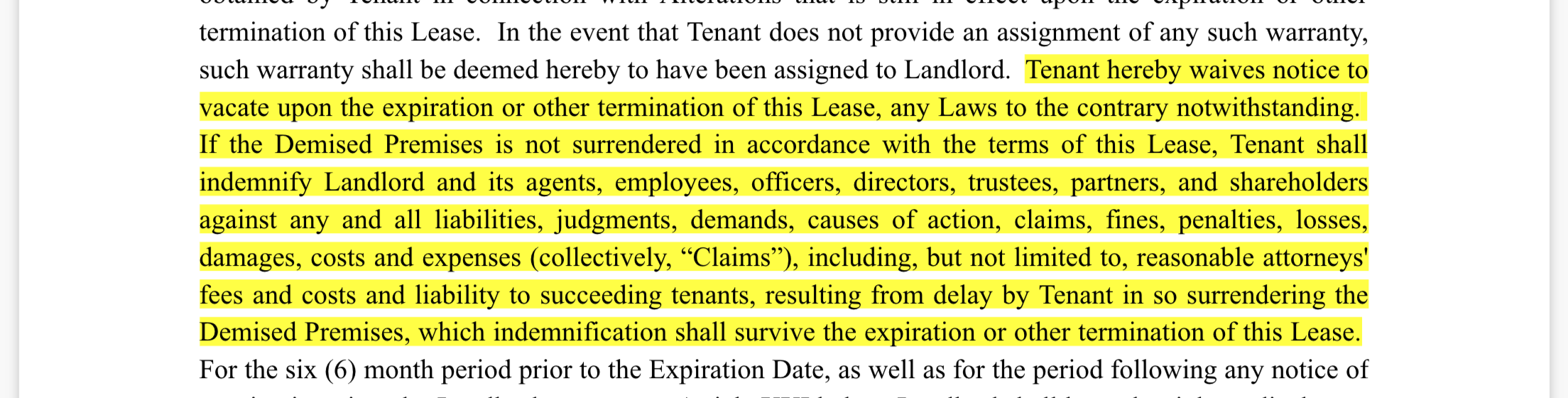
To remove highlighting, you can click the Undo button or press CTRL + Z (⌘ + Z on a mac). If you'd like to remove highlighting added in a previous session (or too many changes ago to undo), drag your cursor over the highlighted text to select it, click the Highlight Color tool, and select the No Color option.
How to use the Text Alignment tools
The Text Alignment tools (shown in the screenshot below) are straightforward and easy to use. All you need to do is place an active cursor in the paragraph you'd like to change the alignment of and then select the appropriate alignment icon.
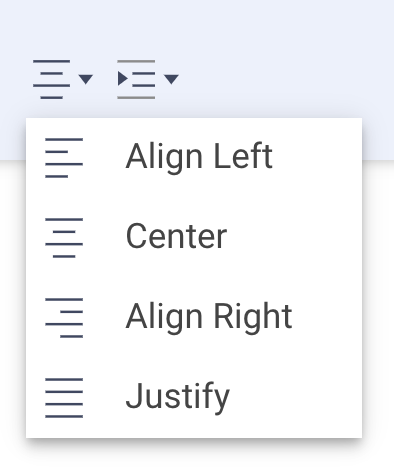
If you'd like to change or undo the alignment, just return to the Text Alignment tools and select a different option.
Displaying Non-printing Characters
Clicking the Non-printing Characters Icon (¶) will toggle non-printing characters on or off. Here's a quick guide to what they mean and how to use them:
| Symbol | Meaning | Keyboard Command |
|
· |
Regular space | SPACE |
|
° |
Non-breaking space | CTRL + SHIFT + SPACE |
|
↵ |
Line break | SHIFT + ENTER |
| ¶ | Paragraph break | ENTER |
Comments
0 comments
Please sign in to leave a comment.