To edit the text in a table in LeasePilot
Place your cursor where you want to change the text and either delete or add text. For example, in the image below, let’s change the title of the second column from “Monthly Base Rent” to “Monthly Base Rent Amount.”
Simply place your cursor right after the word “Rent” and add “Amount”.
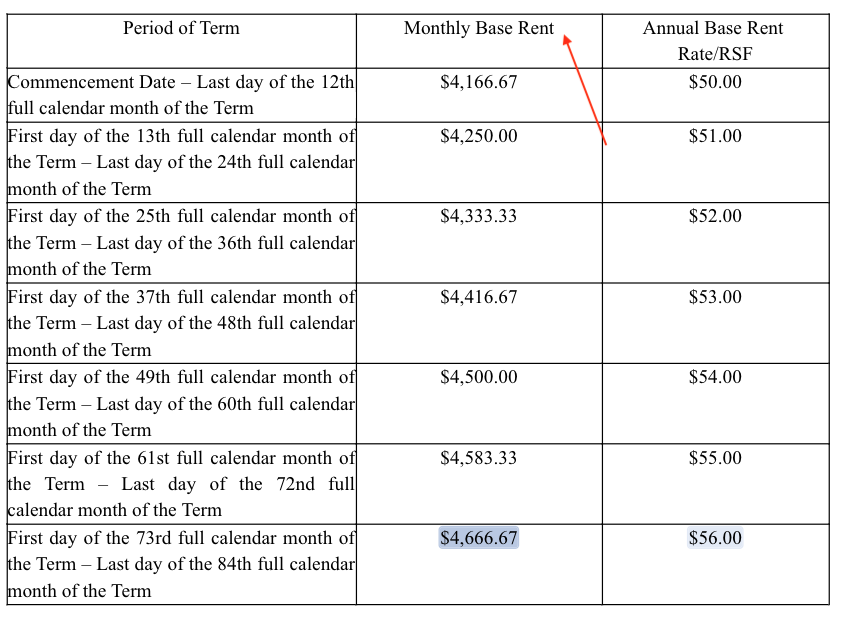
So that it now reads:
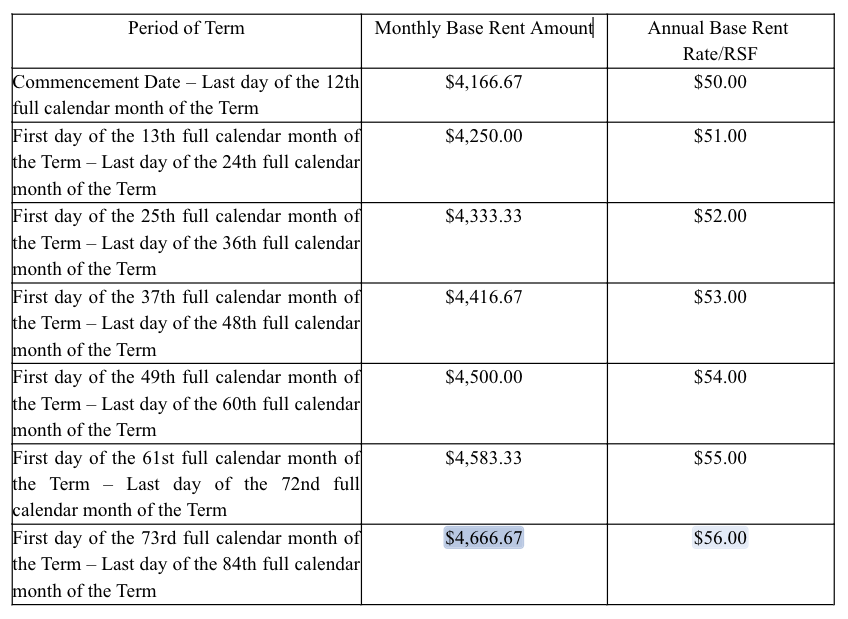
Note: While it is possible to delete certain calculated numbers that are in a table (e.g., rent amount, percentage rent, etc.) it is not recommended to delete those numbers or re-type them. The main reason is that they loose the automation protection for calculated values and abstracts might not be accurate. Feel free to use the automation in the Left Hand Editor to make those changes.
Deleting a table in LeasePilot
You may find that you don’t need a table in your form for a deal, and want to delete it in its entirety. This is going to work well for tables that do not have automated deal terms (e.g., rent tables, breakpoint tables), such as certain tables found in Exhibits as placeholders, etc.
Just highlight all of the text within a table you wish to delete and remove it by either selecting “Delete” or “Backspace” on your keyboard. That’s it! Your table is now gone.
Comments
0 comments
Please sign in to leave a comment.