Uploading an image
To add an image into your document, begin by placing an active cursor where you'd like your image to appear.
In the toolbar, click the Insert menu. In the dropdown, select Image.
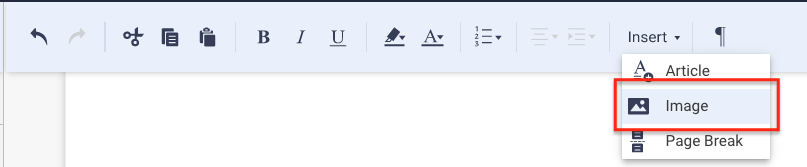
You'll then be prompted to choose an image from your computer to upload. After you select the image, it will appear in your document where you placed your cursor.
Scale and rotate your image
To change the scale or orientation of your image, begin by clicking on it to reveal the editing menu (shown below)

Scaling your image
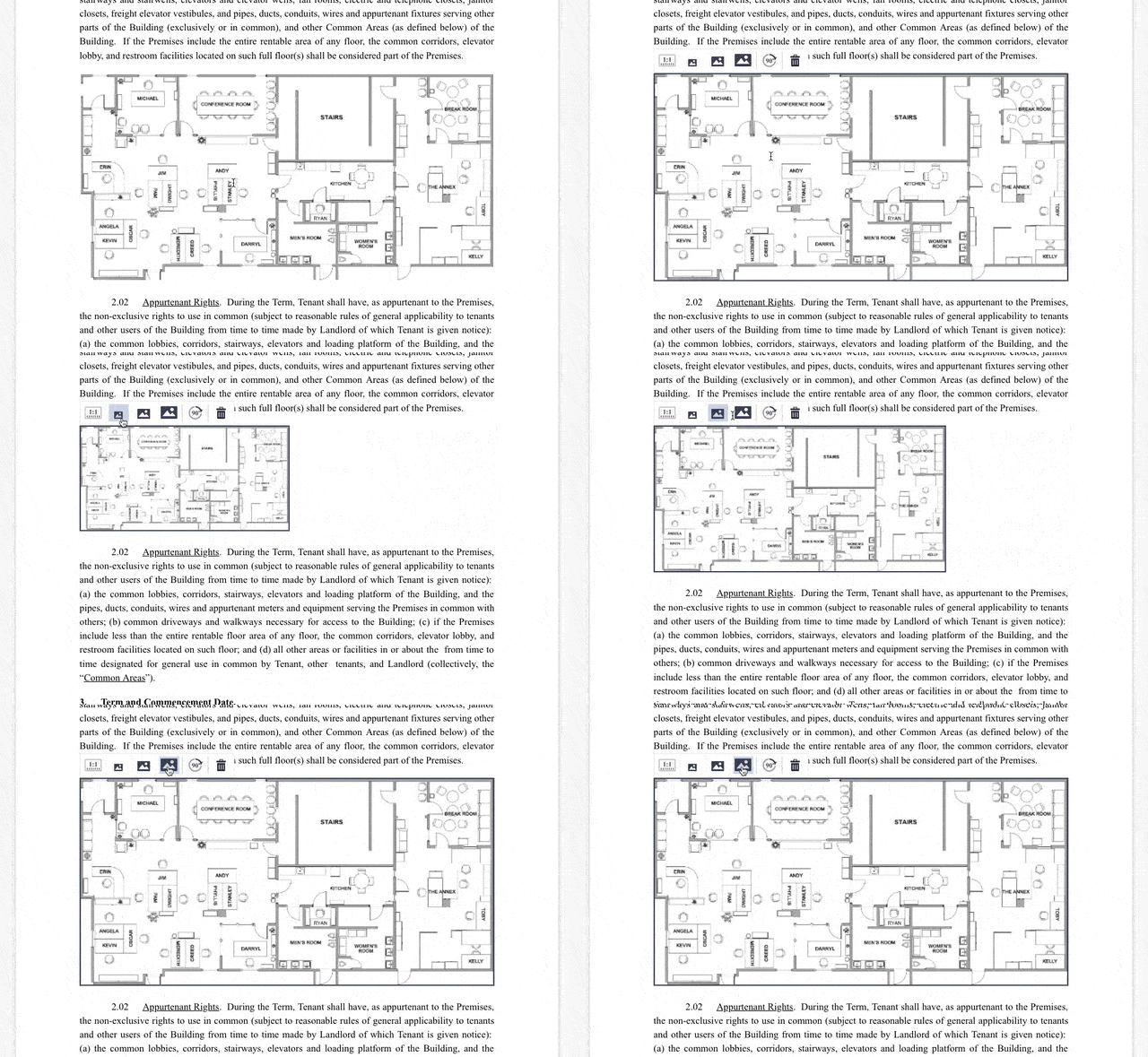
You have four size options for images, each represented by the icons on the left side of the toolbar. All image sizing is done relative to the page margins that are defined in your document. This means that no image can exceed the horizontal width of your page.
- The
 icon will set the image size to its native dimensions. In cases where the image's horizontal size would exceed the document width, your image will be scaled down to fit.
 - The
 icon will set the image to 50% of the document width
 - The
 icon will set the image to 75% of the document width
 - The
 icon will set the image to 100% of the document width
The resizing functionality is shown below:
Rotating your image
To rotate your image, click the  icon. Each time you click, the image will rotate 90° clockwise. Clicking four times will return the image to its original orientation.
Delete an image
To delete an image that you've added, simply click the  icon from the image editing toolbar.
Comments
0 comments
Please sign in to leave a comment.