Tabs & Indentation
If you've inserted a paragraph of non-standard language into your lease, LeasePilot gives you the ability to control the first-line indentation (tab), indentation/margin of the entire paragraph, or both. To access these features, you'll use the Indent Tool shown in the screenshot below:

When you click on the Indent Tool, you'll be presented with several options as shown:

Note this tool will appear disabled or "greyed-out" unless you have an active (blinking) cursor in a paragraph. In many cases, however, these tools might still be disabled even when you have an active cursor in a paragraph. We'll explain why this happens in the Limitations section at the end of this article. For now, let's take a look at how each tool works.
How to use the Paragraph Indent tools
To add to add/remove one or more levels of indentation to an entire paragraph, you'll use the Increase Indent and Decrease Indent tools (shown above the Paragraph text in the screenshot). The following series of screenshots show how it works:
No Indentation
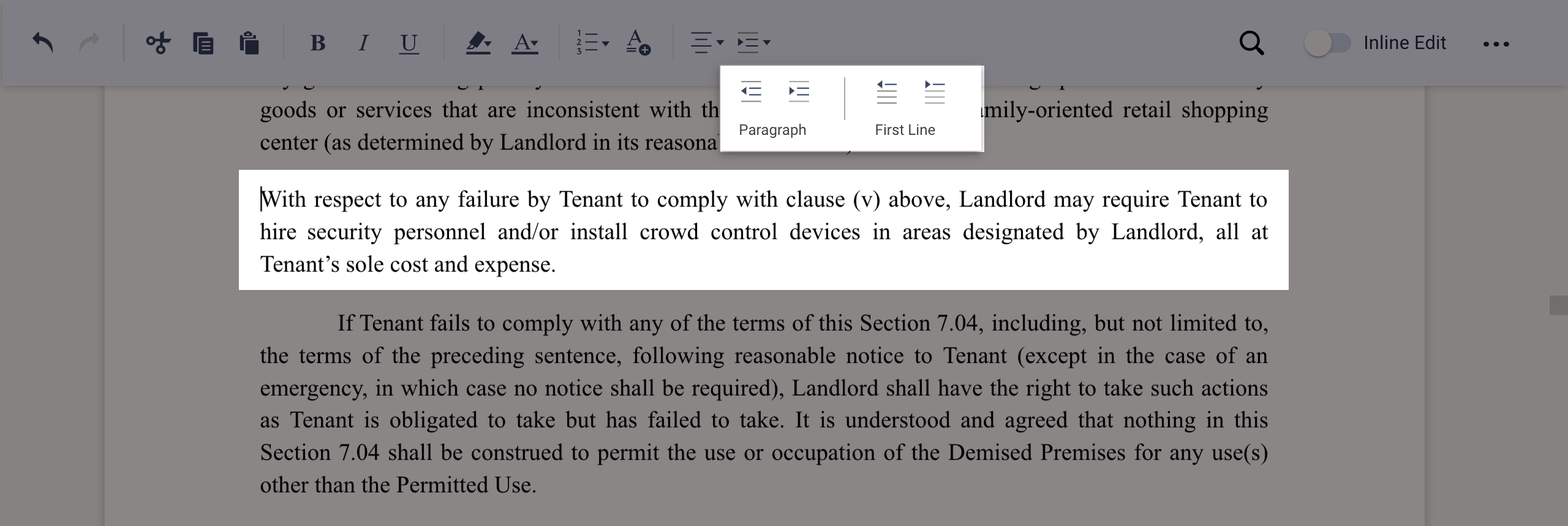
The above image shows a new paragraph with no indentation. This is the default behavior when a new paragraph is added.
One-level Indentation
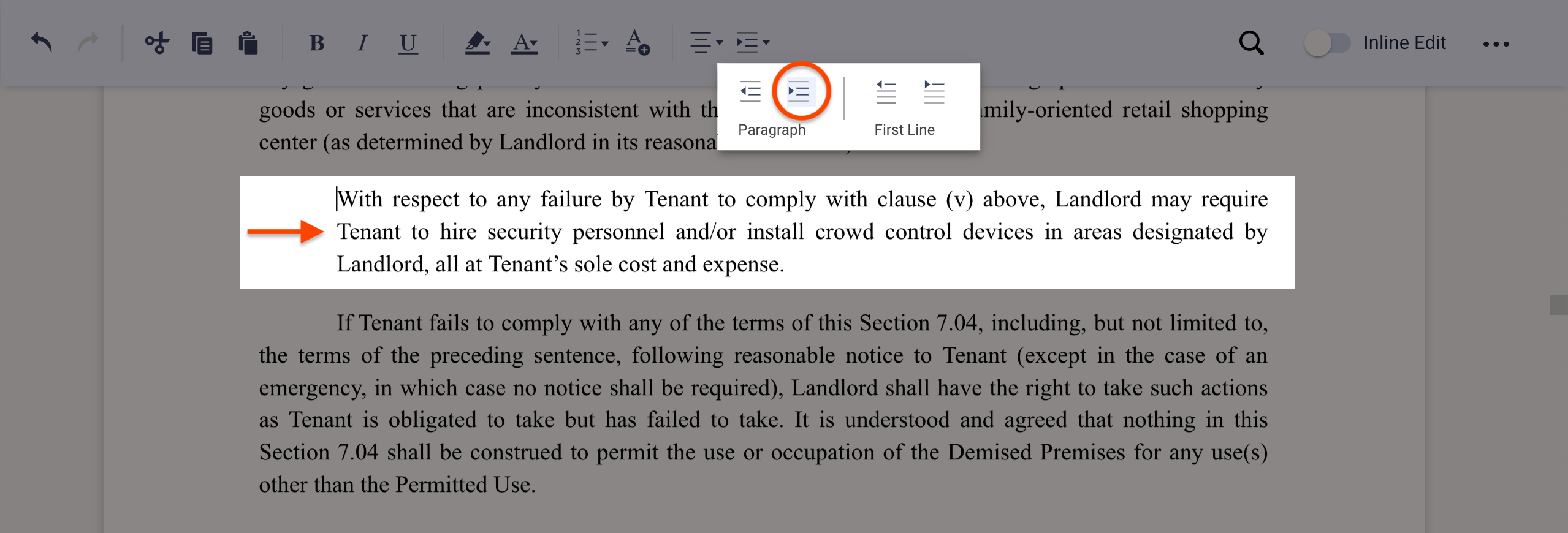
The above image shows the paragraph after clicking the Increase Indent tool one time.
Two-level Indentation
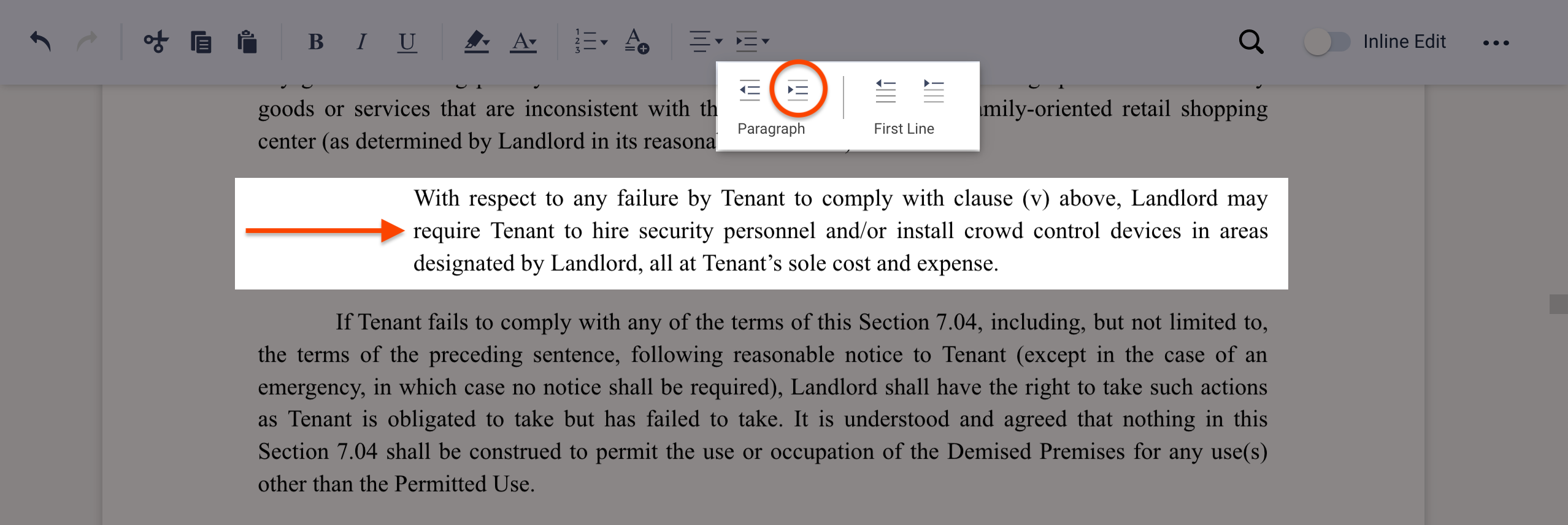
The image above shows the indentation that results from clicking the Increase Indent tool twice.
Subsequent clicks of the Increase Indent tool will further increase the indentation of the entire paragraph. To remove a level of indentation, simply click the Decrease Indent tool. Each click will reduce the indentation one level.
How to use the First Line Indent tools
Using the First Line Indent tools (Increase Tab and Decrease Tab, shown above the First Line text in the screenshot in the introduction to this article) should be pretty straightforward, but there are a few things you should know before you start using them.
Increase Tab
After you click inside your new paragraph to place your cursor, you can add an indentation to the first line in one of two ways:
- Press the TAB key on your keyboard when your cursor is at the beginning of your new paragraph
OR
- Click the Increase Tab icon (shown below)

Note: Pressing the TAB key with your cursor at the beginning of a paragraph a second time will indent the margin of the entire paragraph while maintaining the same first-line indentation relative to the paragraph margin. To add additional tabs to the first line without affecting the paragraph's left margin, use the Increase Tab tool.
To remove one or more first line indentations, use the Decrease Tab tool (Fig. 2) or place your cursor at the beginning of your paragraph and hit SHIFT + TAB on your keyboard.
Below is an animation showing an example of how you might use the tool:
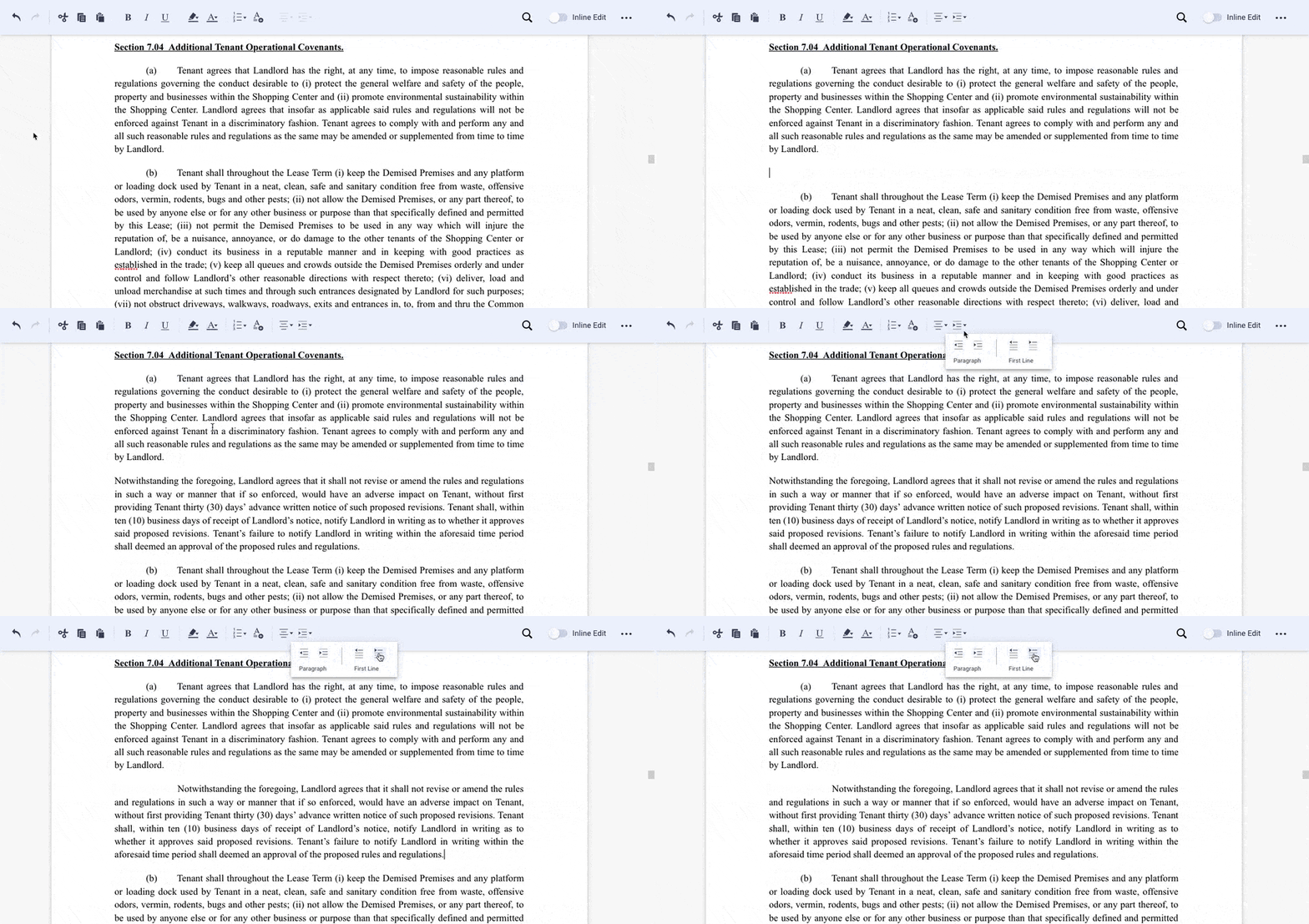
The following steps are taken in the above animation:
- User places their cursor at the end of the paragraph and presses the ENTER key on their keyboard to create a new line.
- User pastes a new paragraph using CTRL + V (⌘ + V on a Mac) into LeasePilot
- User clicks the Increase Tab icon two times to match the first line indent of the paragraphs above and below.
Add & Remove Page Breaks
To insert a page break into your document simply place your cursor where you’d like your page break to appear in the document text. Then from the top toolbar click Insert and select Page Break from the dropdown menu.
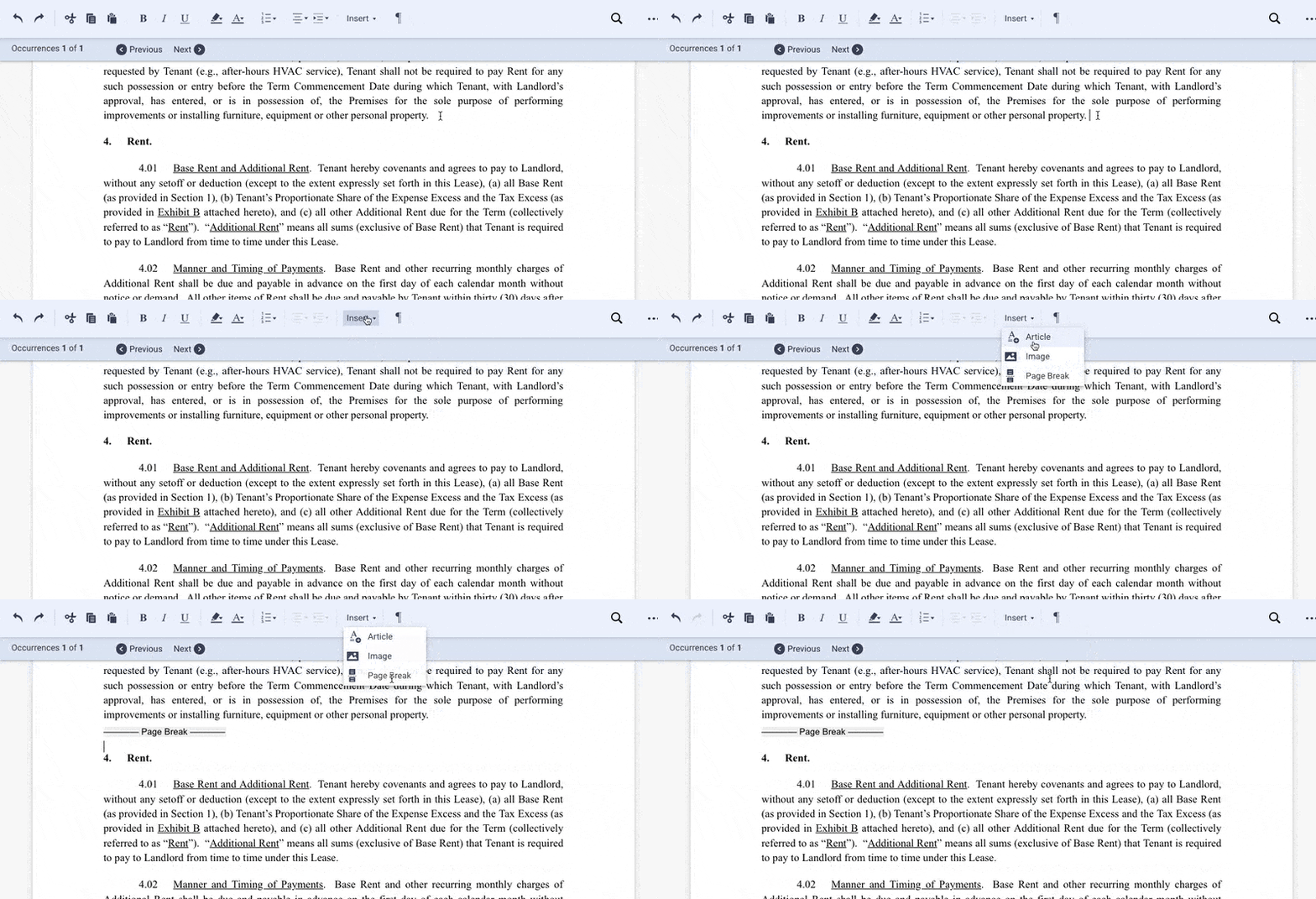
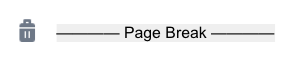
To remove a page break you can either place your cursor directly after the page break and hit Backspace ( Delete on Mac ) or hover your mouse over the page break and click the trash can icon that appears to the left, as shown below:
Limitations
Now that we've covered how to use the new tools, there are a few limitations that you should know about before you start using them. The most important limitation (which we mentioned earlier) is that these tools are only enabled in certain contexts. In the interest of keeping this tutorial as brief as possible, here's a good rule of thumb that generally applies: if you're in an area of the lease with a lot of automation, the tools will be disabled. The reason for this is because we want to make sure that none of the variables or dependencies in your lease are broken.
If you're working in an area of the lease that doesn't have a lot of automation but the tools are still disabled, try to insert a line break by using the ENTER key on your keyboard. You should then be able to use these formatting tools.
The last important limitation to note is that these new formatting tools are only enabled for paragraphs that do not affect the overall structure of your lease. For anything that would change the document outline such as new articles, sections, subsections, etc., you'll want to continue to use the dedicated tools to add those.
If you're still having trouble, please don't hesitate to reach out to our team by submitting a help request in the app.
Comments
0 comments
Please sign in to leave a comment.