LeasePilot handles on-the-fly creation/insertion of new sections and subsections in two different ways. The procedure to follow is contextually dependent on where you're adding sections in your document.
- Case 1: You add a section/subsection in an area of the document that has pre-defined styles
- Case 2: You add a section/subsection in an area of the document that has undefined styles
Adding a new section with pre-defined styles
Easily add a new section to your lease document by following these steps:
1. Choose where you want to add your new section
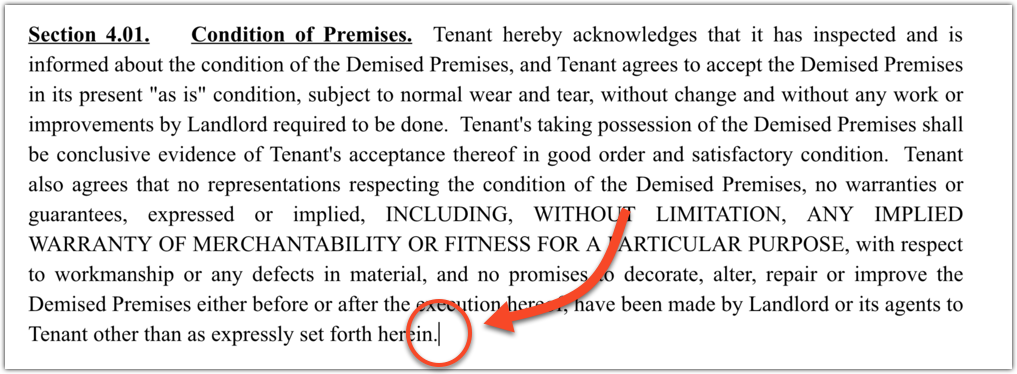
Place your cursor at the end of the paragraph before where you want to insert your new section and click.
2. Use the Add List (  ) tool to insert a new section
In the toolbar, click the Add List tool to reveal the following menu:
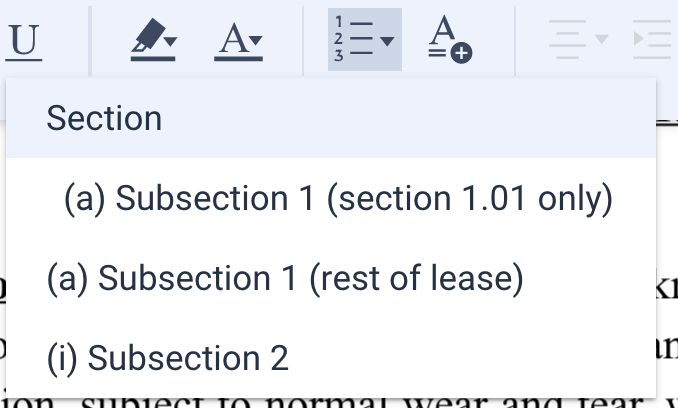
Click the Section option to insert a new section. The new section will automatically be numbered correctly and all sections after it will be re-numbered to reflect the addition of the new section.
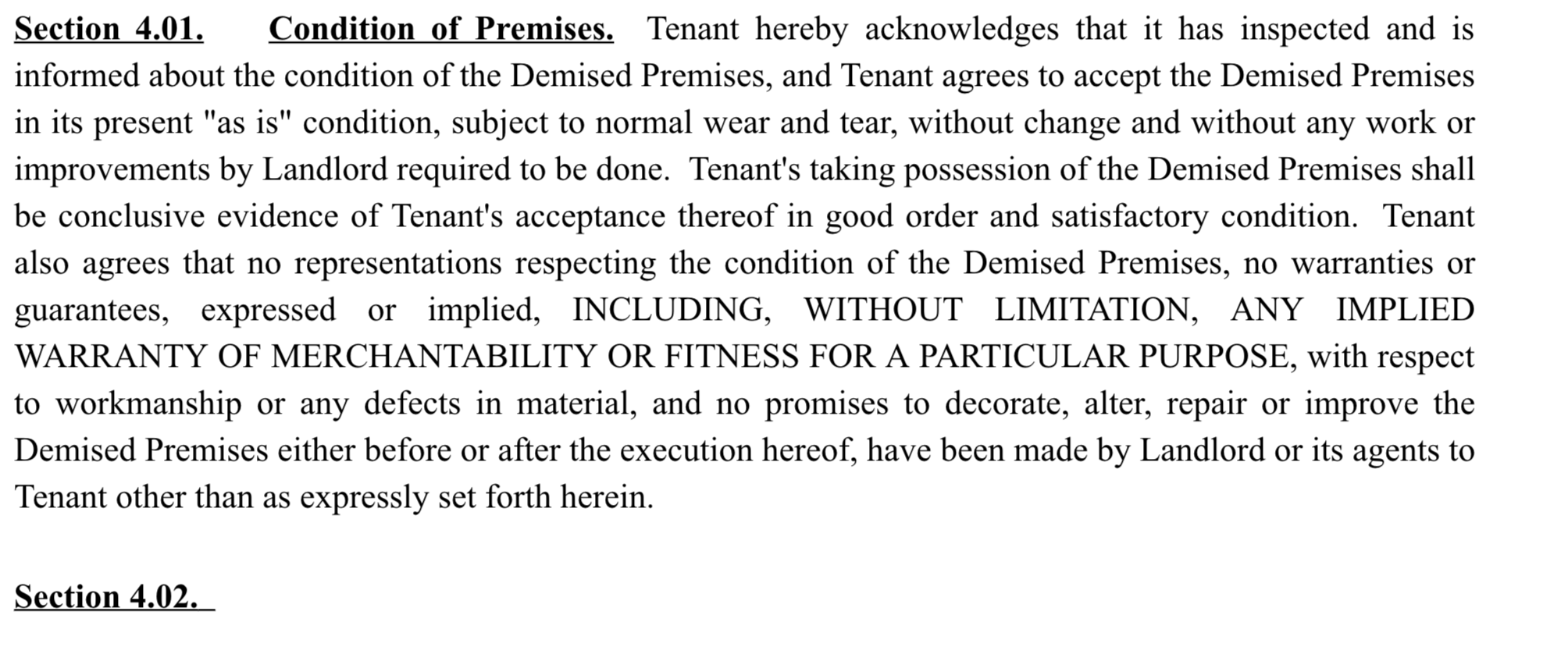
3. Add your text
Copy and paste or type your new language right after the newly added Section header.
Note: you may find yourself wanting to hit Enter to add a new section, just as you do in Word, but we're not Word, we're LeasePilot. And we have cool icons that you can use for that.
Adding a new section with undefined styles
There may be certain portions of your document not structured to insert automated sections or subsections. Examples could include exhibits that are rarely negotiated or that contain images. You will know you are in such a section if when you select the icons shown above, the options are grayed out.
If you click the Use the Add List tool to insert a new section in a section that does not have list styles defined a pop up window will appear asking you to define what list styles you would like this new section to have.
The styles that appear in this popup are all the styles that are already defined within your structured document:
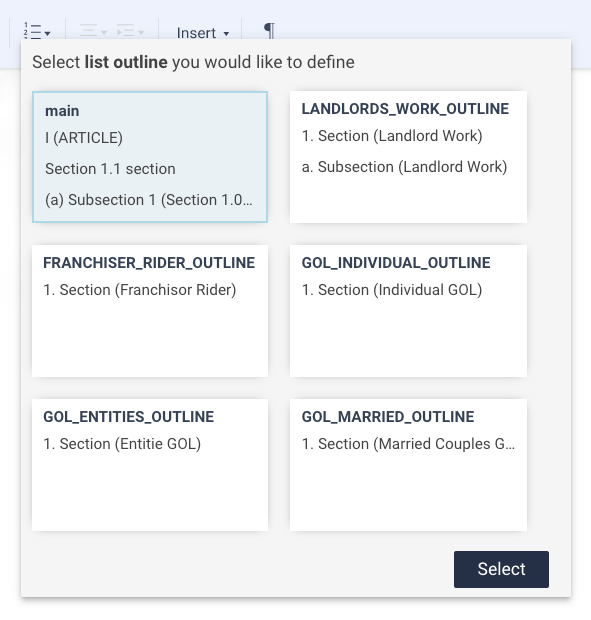
You can hover over the different styles in the pop up to see what style are defined in your document. When you know which one you want to use in your document simply click it and then click Select in the bottom right corner.
After clicking select you will see another dropdown appear where the Add List button is in the toolbar with the list styles you just defined:
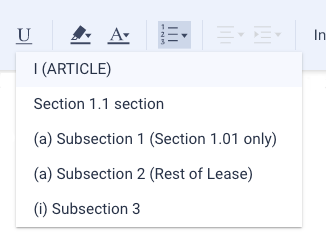
Select the appropriate format from the dropdown and it will appear where your cursor is in the document.
Comments
0 comments
Please sign in to leave a comment.