Although the documents you create, view, and edit in LeasePilot look like the documents you're used to seeing in a standard word processor, there's a lot of digital wizardry going on 'behind the scenes' that makes them vastly different. Being aware of these differences is crucial to understanding both the how and the why of using LeasePilot.
The key difference between a LeasePilot document and a traditional MS Word document is that LeasePilot understands the underlying logic of the document's content, whereas MS Word doesn't understand anything—it just sees your document as a long string of letters, numbers and spaces. Here's what this means in real terms:
Let's say "New York" appears 20 times in a lease you're drafting. In some of those instances, "New York" refers to the property's address. In others, "New York" refers the tenant's state of incorporation or your company's state of incorporation. To MS Word there's no distinction—every instance of "New York" is the same regardless of context. But in LeasePilot, these distinctions are built-in. If you need to change the tenant's state of incorporation (and only the tenant's state of incorporation), you can do so in seconds by updating a single field in the Left-Hand Editor. That's the essence of automation in LeasePilot.
Automation vs. Text Editing
LeasePilot gives you the ability to update your document in two primary ways:
- Through automation which updates the language in your document in multiple places at the push of a button (as explained above)
- Via text editing where you need the flexibility to make customized one-time changes at a granular level
Automating your Document with the Left-hand Editor
On the left side of your screen in the Document View you will the Left-hand Editor. The Left-hand Editor is comprised of several categories/groupings of automation. Each one of these categories is known as a Card, and by clicking a card you can see the automation it contains. The screenshot below compare how the Left-hand Editor looks with all cards collapsed (left) with one card expanded (right).
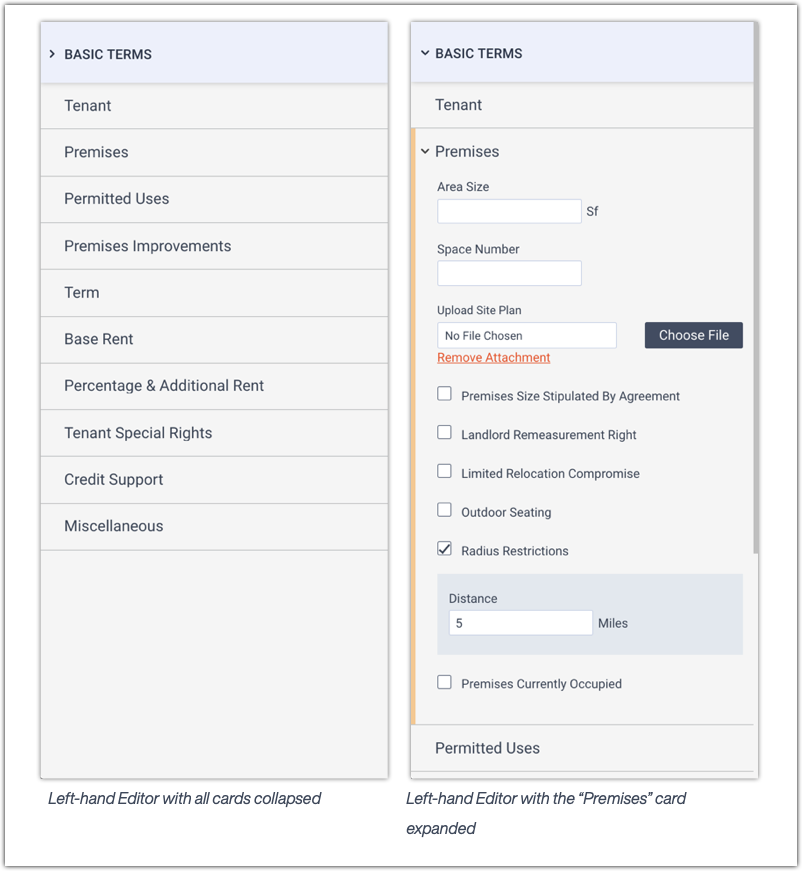
Note that the specific Cards that you see in your LeasePilot instance might differ from what you see above. This is because we build the cards according to what appears in your base form.
In the below example, you can see that we've typed in "Massachusetts" in the State of Formation field, which populates the entire document with the tenant's state of formation.
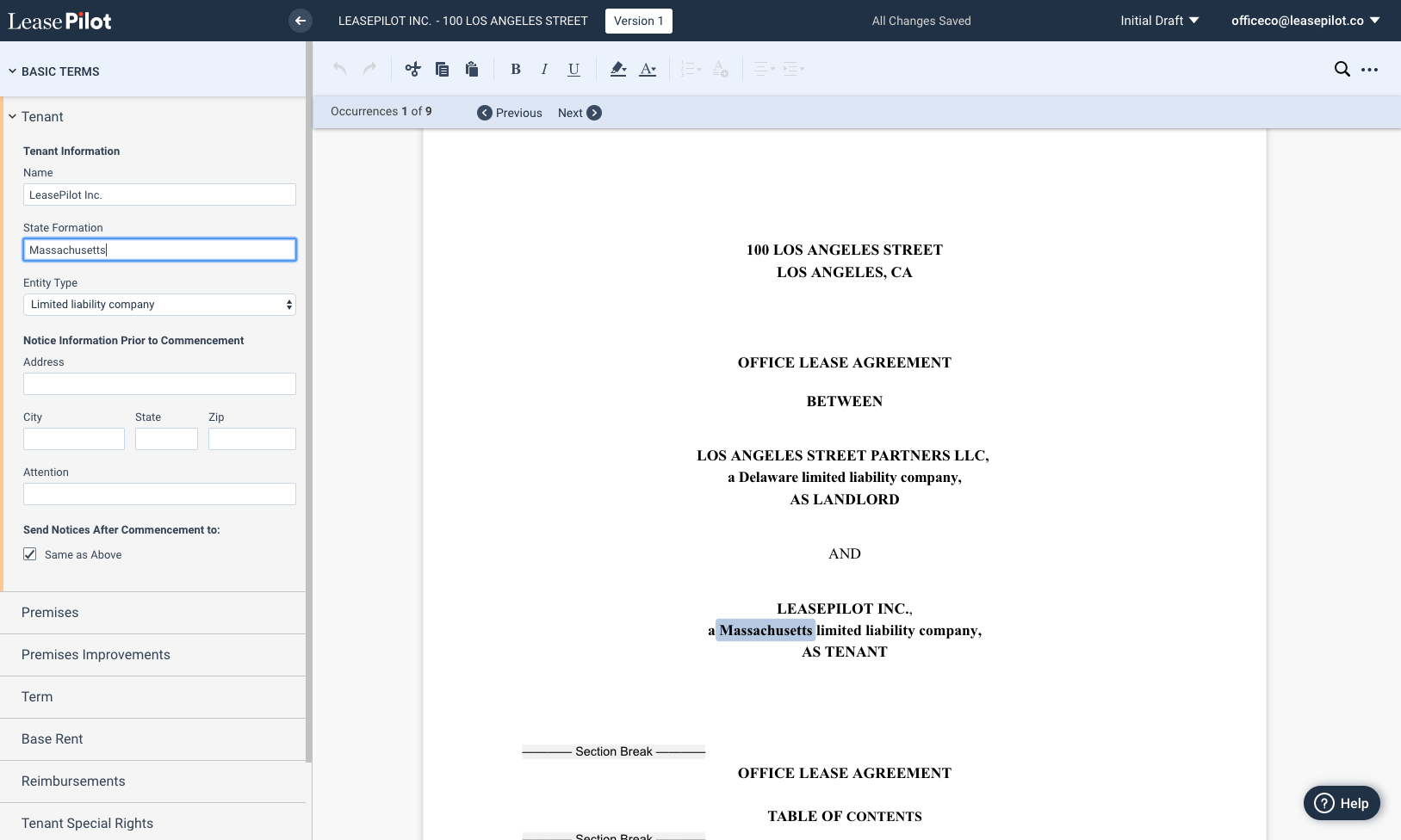
After making a change in the editor, every occurrence of that variable in the lease will be updated automatically. You can review these updates with the "Occurrences" bar that appears above the document:

Just click the "Previous" and "Next" buttons to quickly review each change.
Comments
0 comments
Please sign in to leave a comment.