If you wish to share a document with someone who does not have access to your organization's LeasePilot instance, you can use LeasePilot's Share feature to send the document via email as an MS Word attachment.
How to Share from the Dashboard
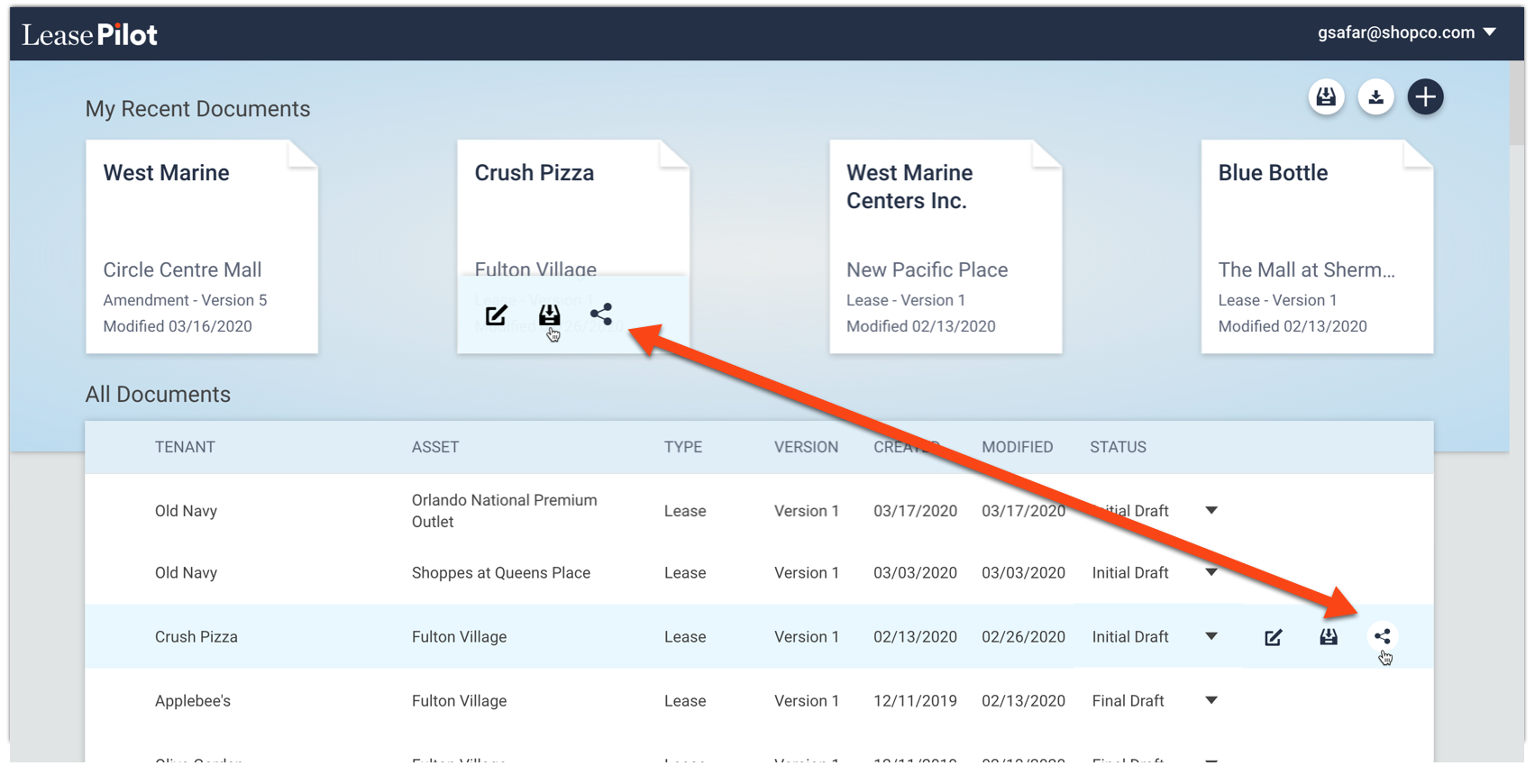
From the dashboard view, hover your mouse over the document you want to share to reveal the Share icon:

As shown in the screenshot below, the Share icon will appear for all documents that are visible in the dashboard, whether they appear in My Recent Documents or in the All Documents list.
Click the icon to reveal the Share by Mail popup. From here you can enter recipient(s) email address(es), customize the subject line of the email, and add an optional message.
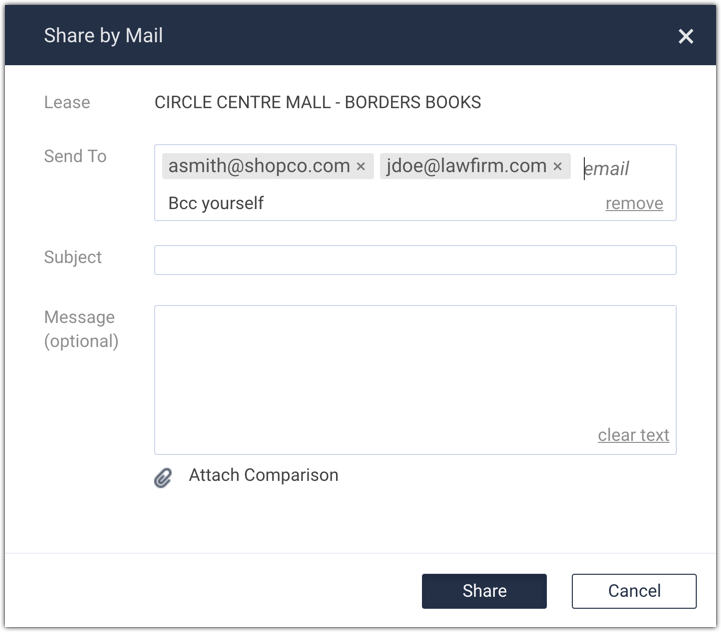
To add a recipient, click anywhere in the Send To field and type the recipient email address. To accept the address you typed, add a comma after the email address or press the ENTER key on your keyboard. To add additional recipients, continue typing email addresses followed by a comma or the enter key. To remove a recipient, simply click the X that appears to the right of the email address you'd like to remove.
By default, you will also be BCC'd on the email. If you do not want to receive a copy, simply click the "remove" text in the bottom-right corner of the Send To box.
Once you've added all the correct recipients, click the Share button to send your email.
Adding a Comparison
If you'd like to include a Comparison in your share, you can click "Attach Comparison" text that appears below the Message field in the popup. A guide to using the Comparison tool is available here: Running Comparisons (Redlines) in LeasePilot.
Comments
0 comments
Please sign in to leave a comment.