By default, every document you create in LeasePilot is added to the Dashboard. This can create a lot of clutter as time goes on. Eventually, you'll probably want to tidy up your dashboard by using LeasePilot's Archive features.
How to Archive a document
Once you've identified a document that you want to archive, hover your mouse over the icon or row of the document you wish to archive. As you hover over the document, the Edit, Archive, and Share icons become visible as shown in the screenshot below.
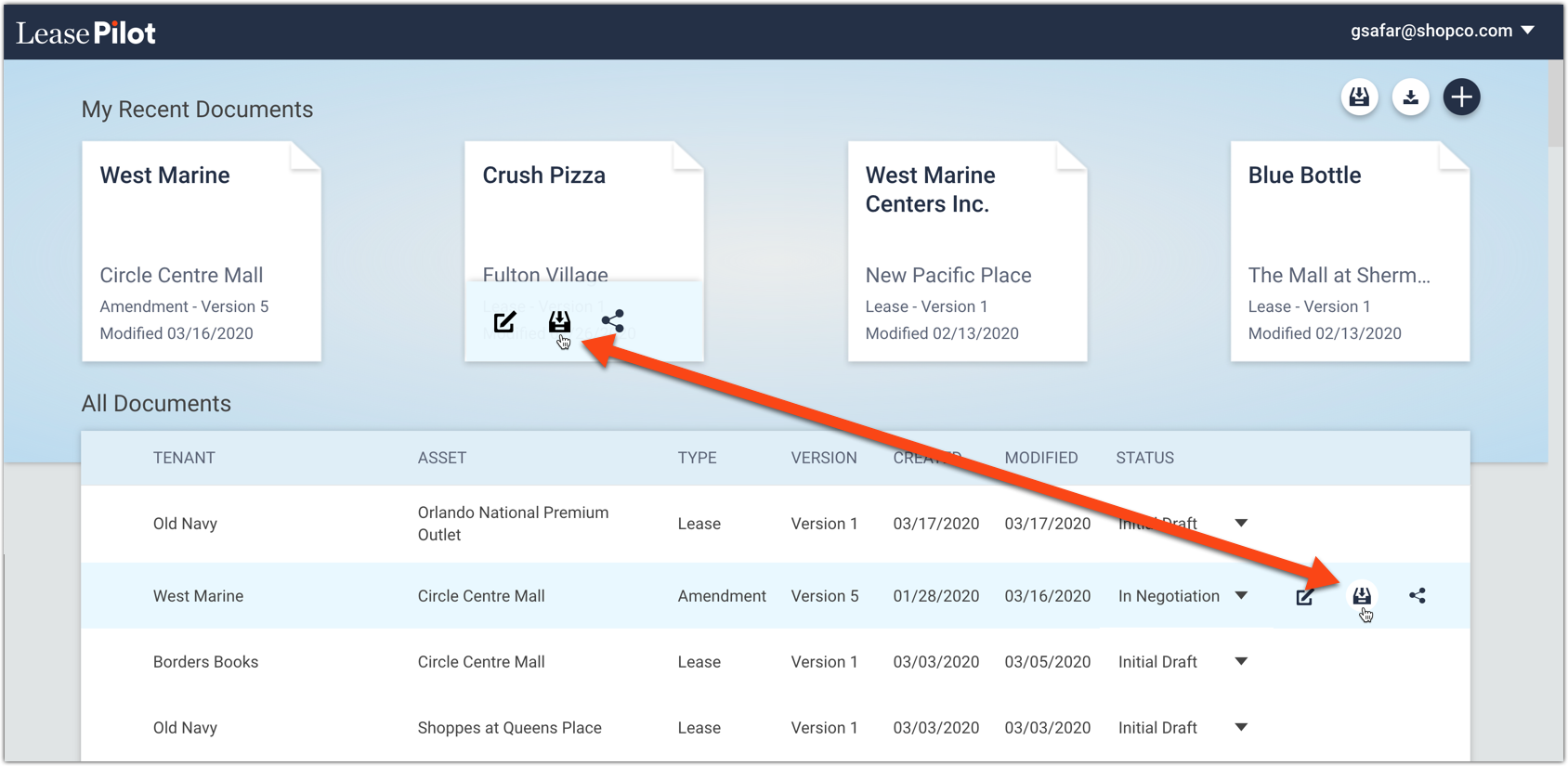
To archive the document, simply click the Archive icon and it will be removed from the dashboard and added to your Document Archive.
Accessing your Document Archive
The Document Archive is pretty much what you'd expect: a list of all the documents that have been archived. To access your Document Archive, first navigate to the Dashboard. Once on the Dashboard, look to the top-right of your screen where you'll see the View Archive, Download Blank Form, and Create New Document buttons.

View Archive button is on the left. Click it to access your archive and view all the documents that have been archived by users in your organization. It will look something like this:
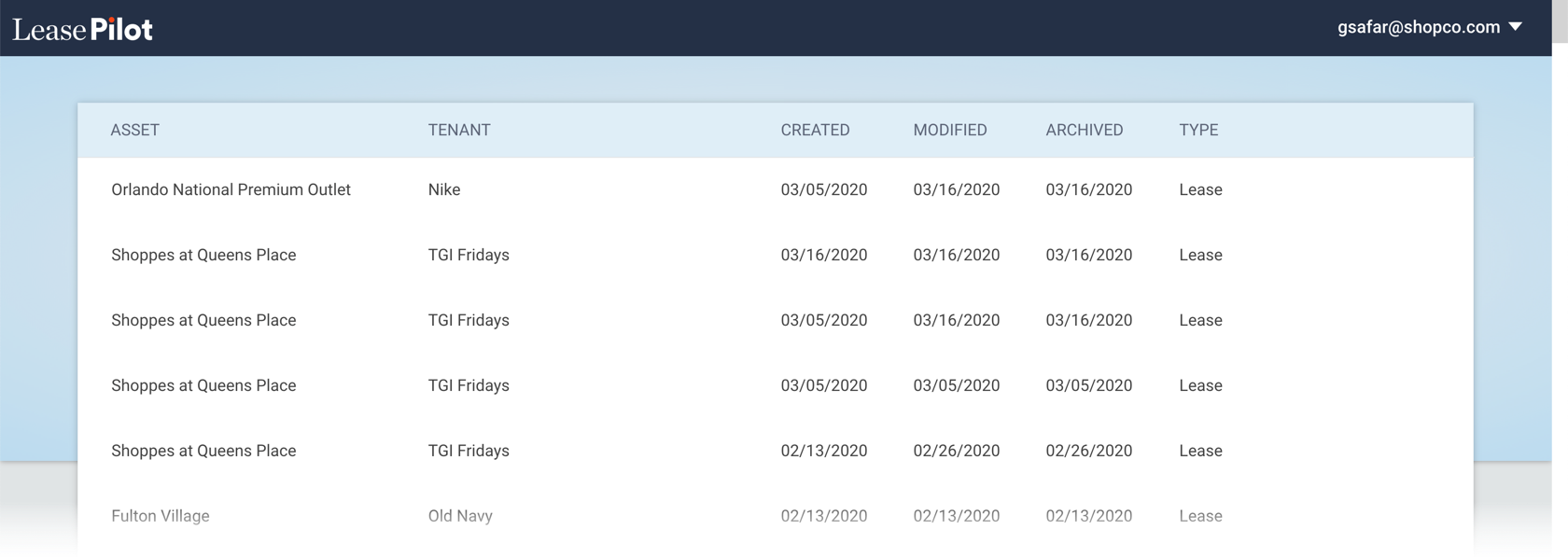
The Document Archive acts much like the Recycle Bin on your computer: You can see what's inside but you can't open/access anything. To open, view, or edit a document in your archive, you must first Unarchive it.
How to unarchive a document
To view , edit, or download a document in the archive, hover your mouse over document you'd like to access.
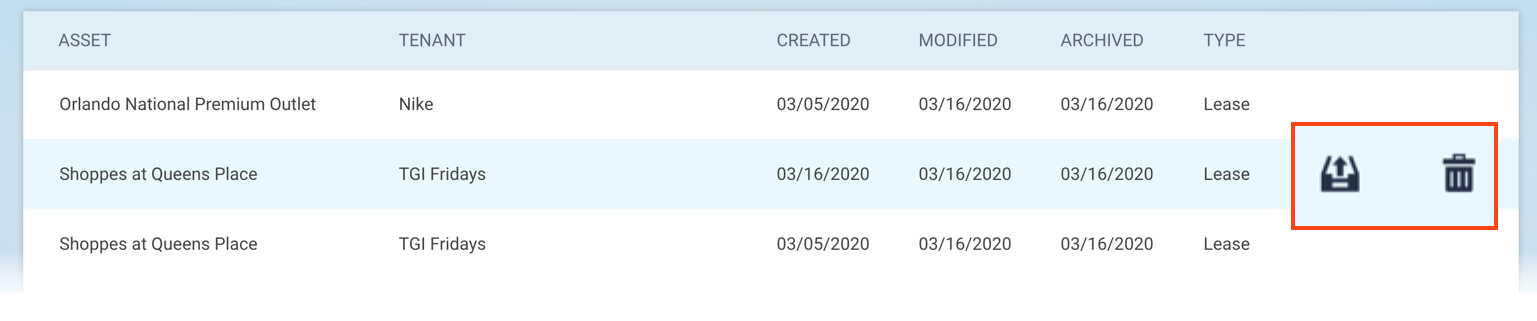
The Unarchive icon (left) and the Delete icon (right) will appear on the right-hand side of the row. To Unarchive a document and return it to the Dashboard where you can reopen or continue editing, simply click the Unarchive icon.
How to delete a document
IMPORTANT NOTE: Deleting a document from LeasePilot is permanent. Even we cannot recover a document once it's been deleted. For this reason we strongly recommend that you refrain from deleting anything unless you are 100% certain that you never need it again. But if you insist, here's how to do it:
Deleting a document can only be done after it has already been archived. So if the document you want to delete is in your dashboard, the first step is to archive it by following the procedure explained above. After you've done that, access your archive and find the document you'd like to delete. Hover your mouse over it and click the Delete icon. You'll be presented with a warning that looks like this:
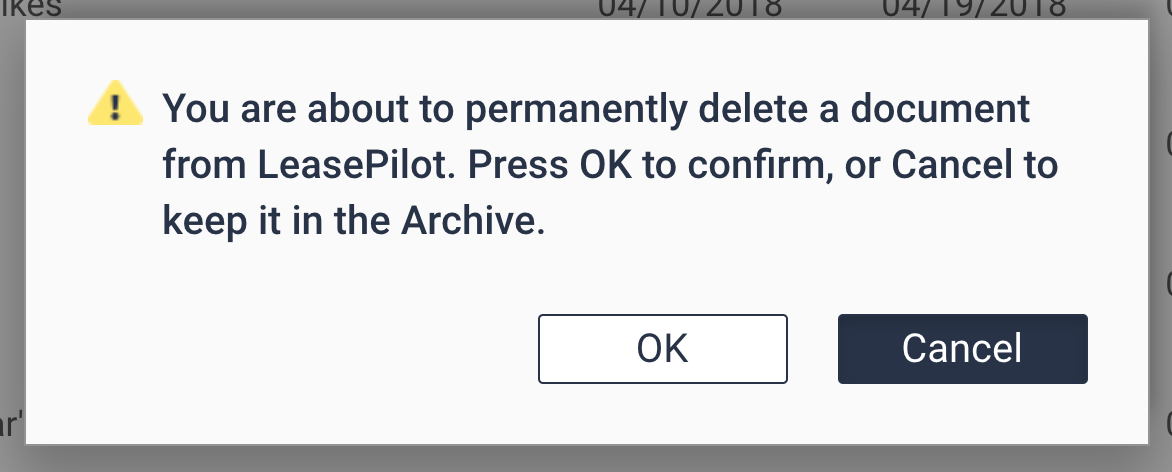
Click OK to proceed. Your document will be gone forever 😭.
Comments
0 comments
Please sign in to leave a comment.