Once you've finished working on your document, LeasePilot provides functionality to share, print, or download your document to MS Word format.
Sharing a Document
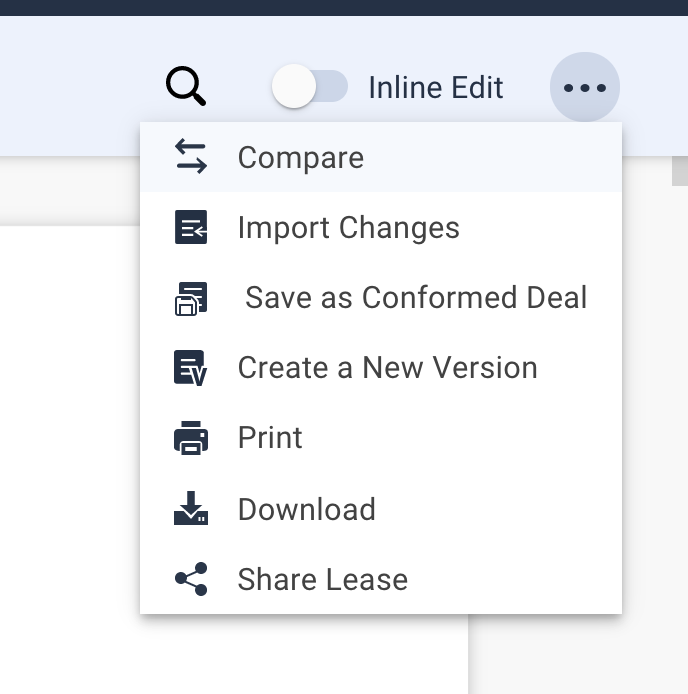
To begin the comparison, first click the Options icon in the top-right corner of the Document View. Then, select the "Share" option.
Note: if you are sharing a lease, the option will read "Share Lease." If you are sharing an amendment, it will read "Share Amendment."
You will then see the Share By Mail popup. From here you can enter recipient email address(es), customize the subject line of the email, and add an optional message. If you'd like to include a Comparison in your share, you can click Attach Comparison text that appears below the Message field in the popup.
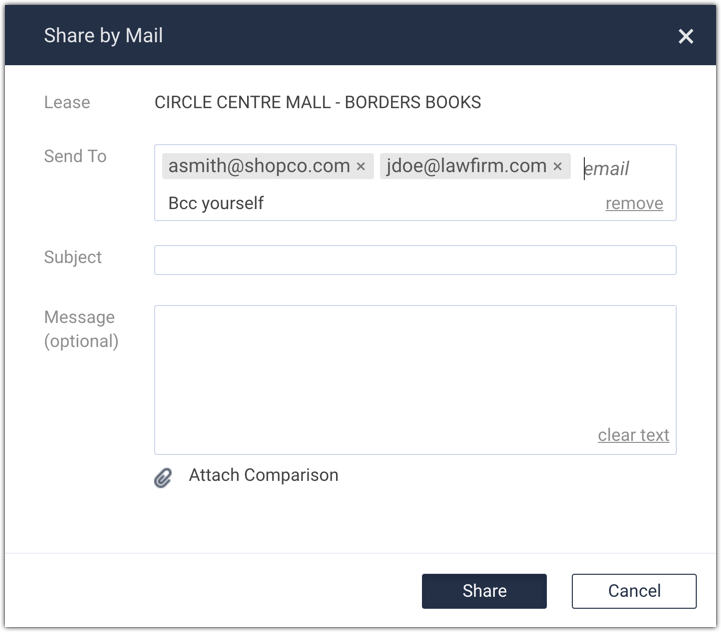
To add a recipient, click anywhere in the Send To field and type the recipient email address. To accept the address you typed, add a comma after the email address or press the ENTER key on your keyboard. To add additional recipients, continue typing email addresses followed by a comma or the enter key. To remove a recipient, simply click the X that appears to the right of the email address you'd like to remove.
By default, you will also be BCC'd on the email. If you do not want to receive a copy, simply click the "remove" text in the bottom-right corner of the Send To box.
When you click Share, recipients that are not LeasePilot users will receive an email with the document attached in MS Word format. Recipients that are users on your LeasePilot account will receive an email containing a link to the document in LeasePilot.
Note: LeasePilot is not integrated directly with your email client, so sharing a document from LeasePilot will not cause a copy of the message to appear in the Sent Mail section of your email client. We recommend copying yourself as a recipient so that you too have a copy of the message and document sent. If you have any issues with emails from LeasePilot not being delivered, please don't hesitate to reach out to our team.
Downloading a Document from LeasePilot into Microsoft Word
Again, by going to the LeasePilot Options list shown in the first image above, select Download and your document will be downloaded into Microsoft Word.
Printing a Document from LeasePilot into Microsoft Word
Go to the LeasePilot Options list shown in the first image above, and select Print to print your document.
Comments
0 comments
Please sign in to leave a comment.