When you return to LeasePilot to work on a subsequent draft of a lease, it'a often the case that you'll want to run a comparison of your previous draft in LeasePilot against some other version to review the changes made between the two documents.
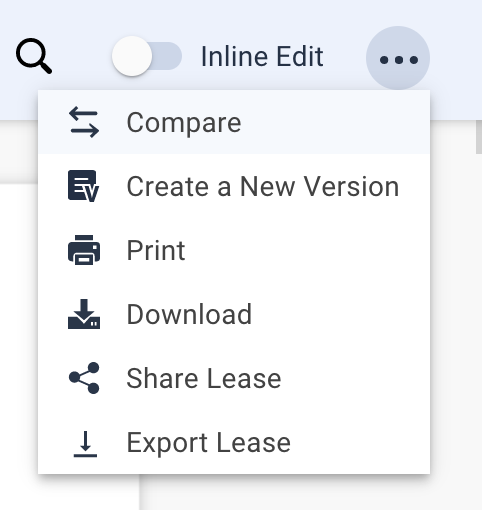
To begin the comparison, first click the Options icon in the top-right corner of the Document View. Then, select the "⇆ Compare" option from the dropdown.
The Compare popup window will appear. From here, you can configure the comparison tool to run a comparison of your current version with:
- The original/base form without any deal- or asset-specific information
- An earlier version of the document that was created in LeasePilot
- Any MS Word file on your computer (this is typically done with a tenant-provided revision)
Compare against the base form
By default, LeasePilot will use the current version of your document as the Revised version and the blank form as the Original. This is shown in the screenshot below, where the latest version of the lease, "3 ORLANDO NATIONAL PREMIUM OUTLET - LORO PIANA" is the Revised version, and the Blank Form is selected as the Original version.
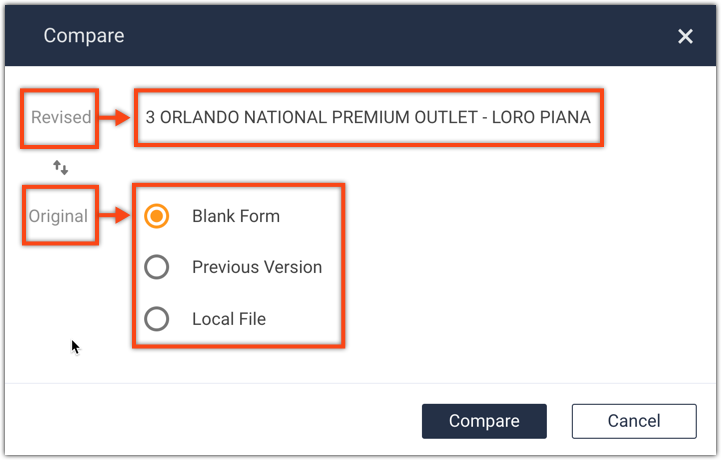
Clicking "Compare" with the above configuration would generate a comparison of the latest draft against the base form. Note: if your LeasePilot configuration has more than one base form, a dropdown will be visible when the Base Form radio button is selected. Use this dropdown to select the specific form you'd like to use in this comparison.
Compare against an earlier version
If you wanted to compare "3 ORLANDO NATIONAL PREMIUM OUTLET - LORO PIANA" against an earlier version you made in LesePilot, you would select the Previous Version radio button and then use the resulting dropdown menu to select an earlier version. Note that you will only be able to select Previous Version if an earlier version already exists in LeasePilot. If no earlier version exists, the selection will appear greyed-out.
Compare against a local file
The third comparison option you have is Local File. When you select this option, you'll be prompted to upload an MS Word document from your computer to use as a comparison.
Swapping the "Revised" and "Original" files
But let's say you want to compare a tenant's revised lease against "3 ORLANDO NATIONAL PREMIUM OUTLET - LORO PIANA". To do that, simply click the ⇅ icon. The When you click the ⇅ icon, Original and Revised will be swapped. From there, select the Local File option and then upload the tenant's revised lease. The resulting document will show the tenant's revision as a redline comparison of your most recent version.
Comments
0 comments
Please sign in to leave a comment.