Create a New Lease
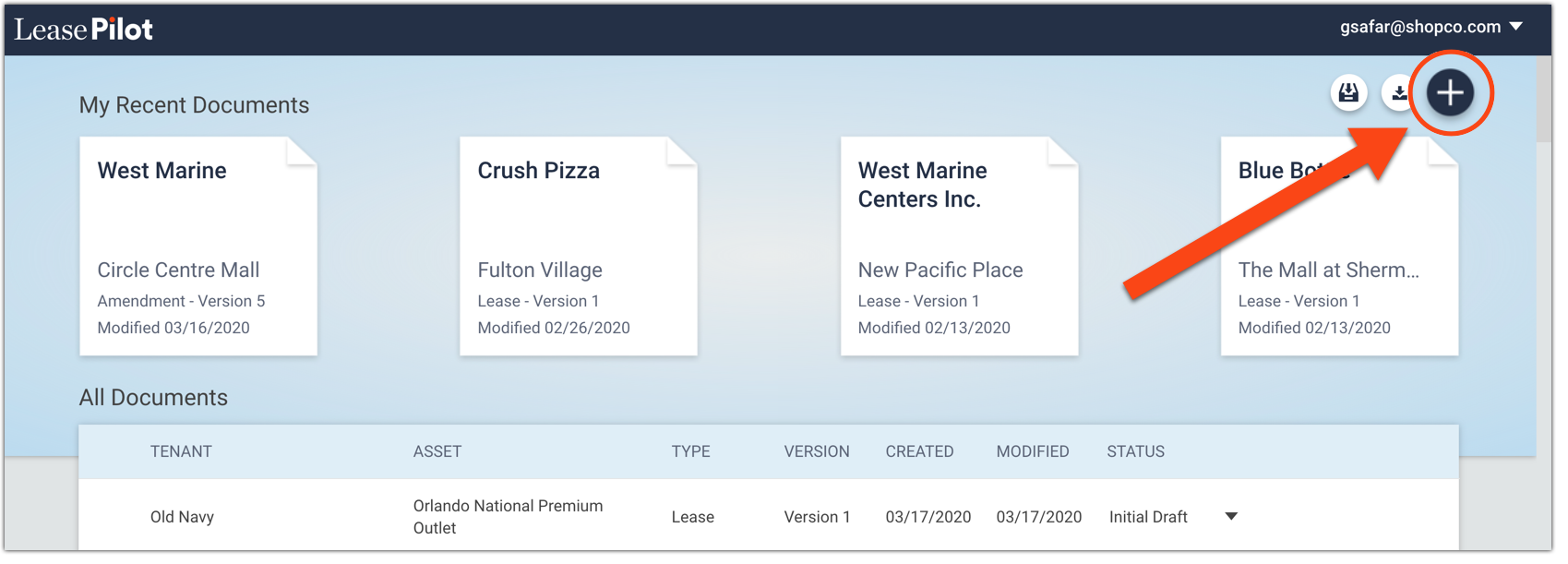
All new leases are created from the main LeasePilot Dashboard, shown below. To begin creating a new lease, click the Create New Document icon the top right of your dashboard.
A Create New Document popup will appear. Note that the options available to you on this screen will vary depending on your specific LeasePilot configuration. Two examples are below.
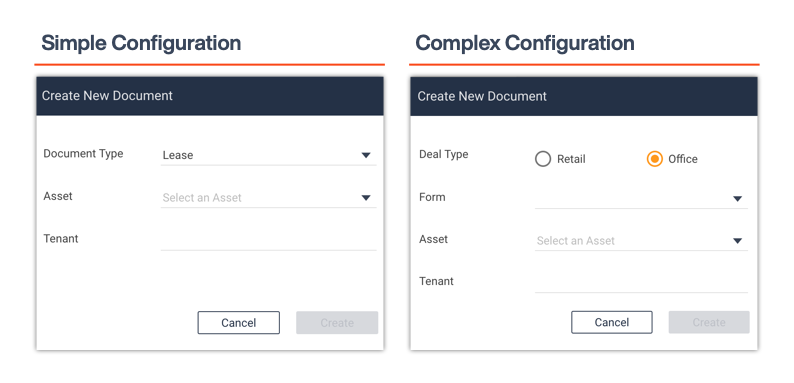
This is where you'll choose the basic properties of the lease you want to create. Your possible selections might include:
Deal Type: If available, you'll select from options like Retail, Office, etc.
Document Type: Choose the type of document you want to create(e.g. Lease, Amendment, LOI).
Form: If you have more than one base form in LeasePilot (e.g. Long Form and Short Form), you'll select that here.
Asset: Select the asset for which you are creating the new document. When your document is created, all the asset-specific information will automatically be included. Note: If the asset you want isn't available, use the in-app Help features to request a new asset.
Tenant: Type the name of the tenant for which you are creating the lease.
When are you done filling out this information click "Create" at the bottom of the window and your new document will be created.
Comments
0 comments
Please sign in to leave a comment.