Periodic maintenance of your forms means you may need to make certain updates and edits from time-to-time. You can do so easily in LeasePilot using Form Manager.
Getting Started
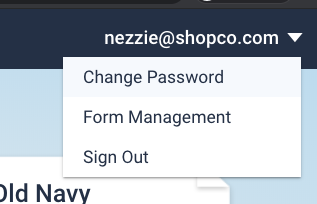
In the top right hand corner of your screen, select the down arrow by your login name and select Form Management
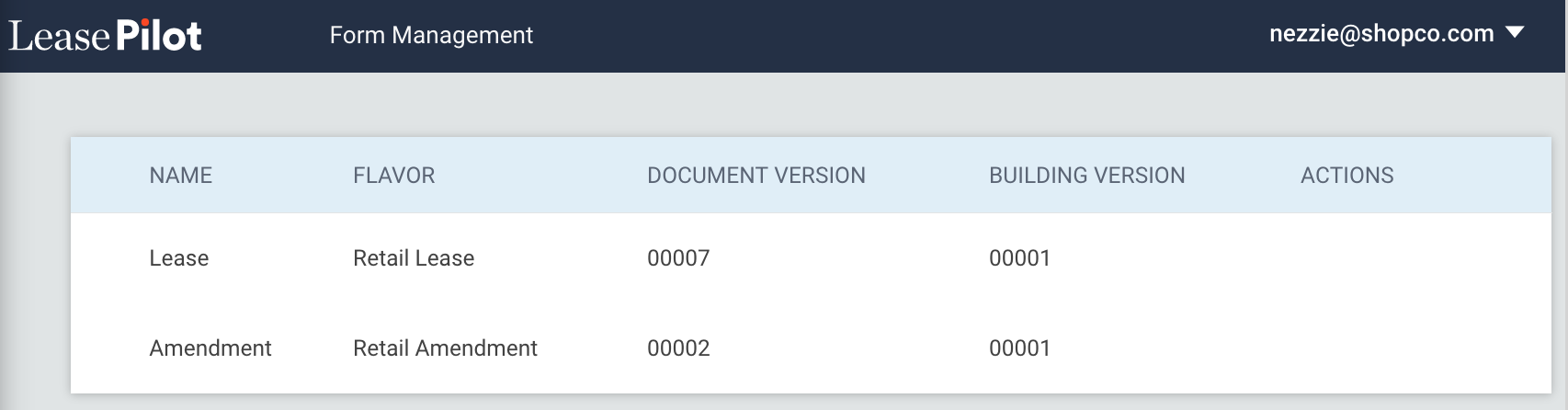
On the next screen, you will see all of your company's available documents in LeasePilot. By hovering your cursor under the Actions header, an icon will appear labeled Manage Form. Select this icon to begin managing that form.
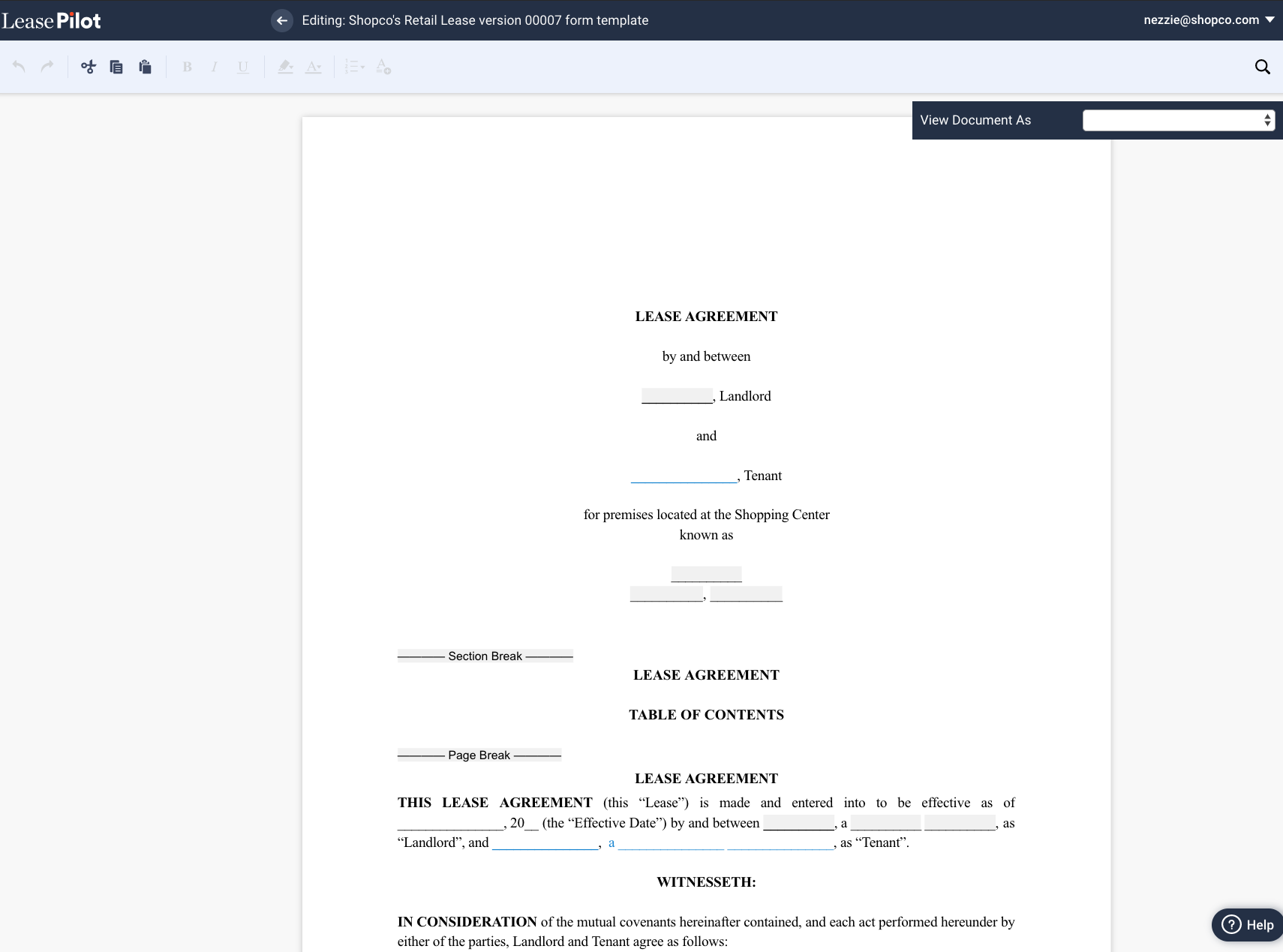
You will then see the base version of the form selected. The form will not contain any asset specific information. If you wish to see how a form will appear when used with a specific asset, you can do so by selecting the asset from the View Document As dropdown in the top right hand corner of the screen. Note: When viewing the document with an asset you will not be able to edit the asset-specific information. Please see this article for how to change or update asset-specific information.
Editing Your Form
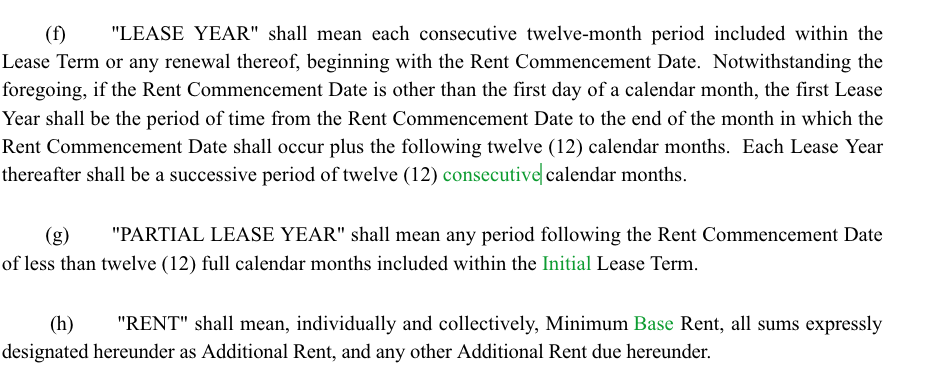
You can add language to your base form by placing your cursor anywhere and either typing or copying and pasting the new language. Newly added language will appear in green.
NOTE: you can also delete language using Form Manager but the deletion will not be marked (e.g., the language will not appear with a strike-through or some other designation that it has been deleted).
Modifying "Logic-Based" Language
Certain "logic-based" language can also be modified in one of two ways:
- Select a gray "placeholder" box. This will cause the corresponding automation from the left-hand editor to appear in the top left-hand corner of your screen. Enable the automation by selecting the automation in the pop-up box (this could be a checkbox, toggle or dropdown). This will cause language to appear in your form as if you made the selection from the left-hand editor. You can then edit this language.
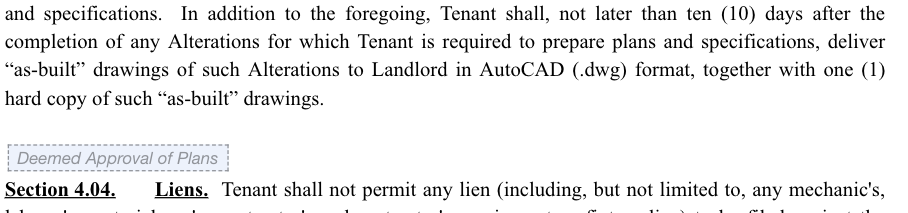
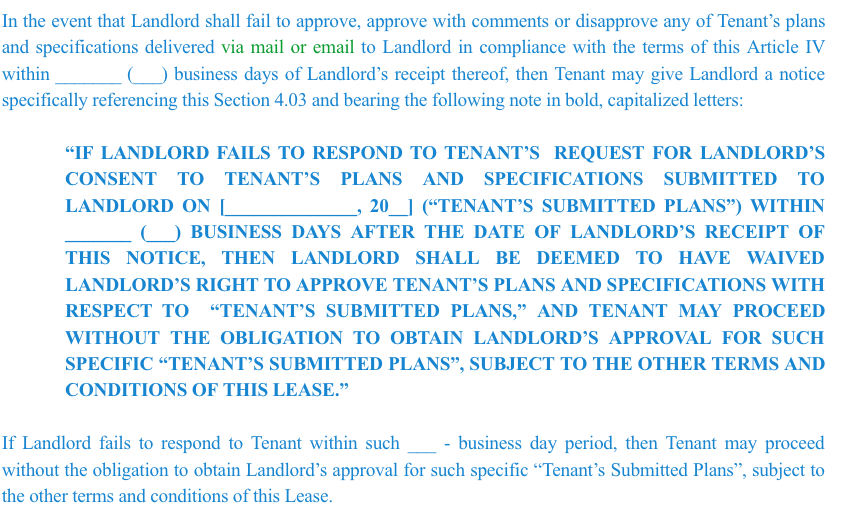
- Select blue text within the body of the document which indicates that this language is controlled by automation. Double click and start directly editing the language.
Certain Limitations
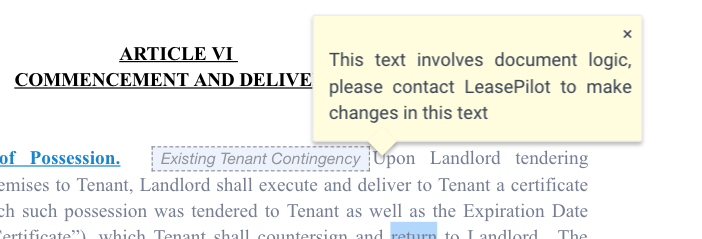
Certain logic-based language is restricted from being edited as it impacts numerous areas in the document and is best if LeasePilot makes that change for you. You will know if you are trying to edit this type of language if you see the following message:
Message informing user to contact LeasePilot
Saving and Publishing Your Changes
Once you're done making your changes, you can either "Save" or "Publish" the changes by selecting one of the two icons at the bottom right hand of your screen:
Save and Publish Icons in LeasePilot
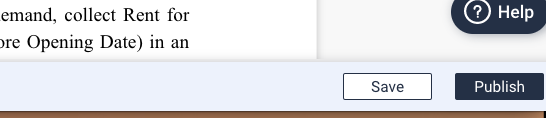
- Saving your edits only saves them for you to review at a later time. They are only visible to the Form Manager and not made globally until the Form Manager selects Publish.
- Edits that are "Published" are only visible on newly created documents.
- A Form Manager can discard any edits made by selecting the Discard icon at the bottom left-hand of the screen. NOTE: selecting "Discard" only discards edit made during a working session. If you "Save" your edits and return to the document to keep working, you will only be able to Discard edits made during your current working session.
Comments
0 comments
Please sign in to leave a comment.